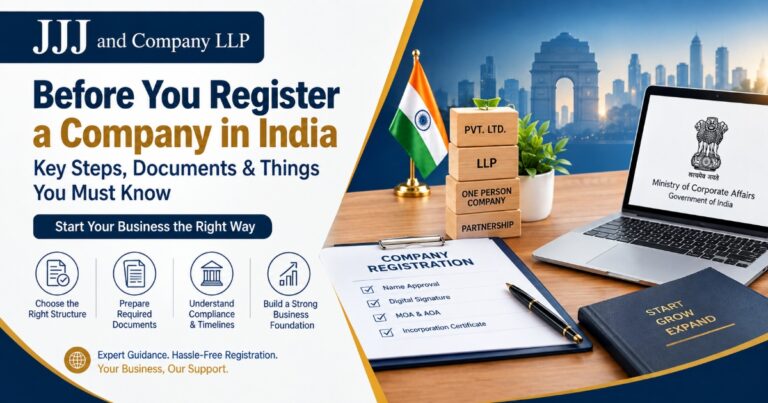

Setting up a Private Limited Company, One Person Company (OPC), or Limited Liability Partnership (LLP) in India has become easier than ever with the Ministry of Corporate Affairs (MCA) offering a completely online incorporation process. From reserving a company name to receiving the Certificate of Incorporation, every step is carried out digitally through the MCA portal.
One of the most important requirements for this online process is a Digital Signature Certificate (DSC). Every proposed director or designated partner must digitally sign the incorporation documents before they are submitted to the MCA. Forms such as SPICe+, eMoA, eAoA, AGILE-PRO, and FiLLiP cannot be filed without a valid DSC.
In this detailed guide, our experts at JJJ and Company LLP explain why DSC errors occur during company registration, how to troubleshoot them, and what preventive measures you should follow to ensure a smooth incorporation process.
By the end of this guide, you will understand:
- What a Digital Signature Certificate (DSC) is.
- Why DSC is mandatory for company registration.
- The most common reasons why DSC stops working.
- Practical solutions to fix DSC-related issues.
- Best practices to avoid errors in future MCA filings.
What Is a Digital Signature Certificate (DSC)?
A Digital Signature Certificate (DSC) is a secure electronic signature issued by a government-authorized Certifying Authority (CA) under the Information Technology Act, 2000. It acts as your digital identity and allows you to sign electronic documents with legal validity.
Unlike a handwritten signature, a DSC uses encryption technology to ensure the authenticity and integrity of electronic records. Once a document is digitally signed, any unauthorized modification invalidates the signature, making it one of the most secure methods of online authentication.
A Class 3 DSC is generally used for MCA filings and is stored securely in a USB cryptographic token.
Common Uses of a DSC
A Digital Signature Certificate is widely used for:
- Company Registration through SPICe+
- LLP Incorporation through FiLLiP
- Filing MCA Annual Returns
- Director KYC (DIR-3 KYC)
- GST Registration and GST Returns
- Income Tax Return Filing
- Import Export Code (IEC) Applications
- Trademark and Patent Filings
- Government e-Tendering
Without a valid DSC, the MCA portal will not accept incorporation forms, making it impossible to complete the registration process.
Why Is DSC Mandatory for Company Registration?
The Ministry of Corporate Affairs has made the use of a Digital Signature Certificate mandatory to ensure that every electronic document submitted on the MCA portal is genuine, secure, and legally enforceable.
Since the incorporation process is entirely paperless, the MCA needs a reliable way to verify the identity of directors and designated partners before approving a company or LLP.
A DSC helps:
- Verify the identity of directors and partners.
- Prevent unauthorized or fraudulent filings.
- Maintain the integrity of incorporation documents.
- Comply with the Information Technology Act, 2000.
- Enable secure, paperless business registration.
Without a valid DSC, incorporation forms cannot be digitally signed or submitted.
Why Is Your DSC Not Working During Company Registration?
A DSC may stop working for several reasons. In most cases, the problem is caused by software conflicts, incorrect configuration, expired certificates, or communication issues between your system and the MCA portal.
Let’s look at the most common causes.
1. USB Token Is Not Detected
Your DSC is stored inside a USB cryptographic token such as ePass2003, ProxKey, WatchData, or SafeNet. If your computer fails to recognize the USB token, the MCA portal cannot access the certificate.
Common Reasons
- USB token driver is missing.
- USB port is damaged.
- Loose connection.
- Faulty USB token.
- Security software blocking access.
Quick Solution
- Reconnect the USB token.
- Try another USB port.
- Restart your computer.
- Install the latest driver from the official provider.
2. EmSigner Is Not Working
EmSigner is the software that connects your browser with the Digital Signature Certificate.
If EmSigner is not installed correctly or is not running in the background, digital signing will fail.
Common Error Messages
- Failed to connect EmSigner
- Unable to establish connection
- Signing window not opening
- Authentication failed
Solution
- Download the latest version of EmSigner.
- Install it using Administrator privileges.
- Restart the system.
- Launch EmSigner before opening the MCA portal.
3. Browser Compatibility Problems
The MCA portal works best with updated versions of Google Chrome and Microsoft Edge.
Outdated browsers, disabled JavaScript, blocked pop-ups, or incompatible extensions can interrupt the signing process.
Best Practice
Before filing:
- Clear browser cache.
- Enable pop-ups.
- Disable unnecessary extensions.
- Use the latest browser version.
4. DSC Has Expired
Every Digital Signature Certificate has a fixed validity period, usually between one and three years.
If the certificate has expired, it cannot be used for:
- Company registration
- LLP incorporation
- MCA annual filings
- GST filings
- Income tax filings
Always verify the expiry date before starting incorporation.
5. PAN Details Do Not Match
The information stored in your DSC must exactly match your PAN details.
Even small differences such as:
- Missing middle name
- Incorrect surname
- Typographical errors
- Incorrect PAN number
can result in authentication failure.
Always cross-check PAN information before purchasing or renewing a DSC.
6. Incorrect USB Token Drivers
Each USB token requires compatible drivers.
Using outdated or incorrect drivers prevents Windows from detecting the Digital Signature Certificate.
Always install the latest drivers supplied by your Certifying Authority or USB token manufacturer.
7. MCA Portal Server Issues
During peak compliance periods, the MCA portal may experience heavy traffic.
Common symptoms include:
- Session expired
- Server timeout
- Signing failure
- Slow page loading
If this occurs, wait for some time and try again during non-peak hours.
Step-by-Step Guide to Fix DSC Not Working During Company Registration
If your Digital Signature Certificate (DSC) is not working while filing company incorporation forms on the MCA portal, follow the steps below in the same order. This checklist is based on the practical approach followed by professionals while handling company registrations.
Step 1: Verify the Validity of Your DSC
Before making any changes, check whether your Digital Signature Certificate is still valid.
Confirm the following:
- The DSC has not expired.
- It belongs to the correct director or designated partner.
- It is a Class 3 DSC accepted for MCA filings.
- The certificate is properly stored in the USB token.
- The PAN details linked with the DSC are correct.
If your DSC has expired, contact your Certifying Authority (CA) immediately for renewal before proceeding with the incorporation process.
Step 2: Check Whether the USB Token Is Working
Insert the USB token into your computer and verify whether it is detected.
If it is not detected:
- Remove and reconnect the USB token.
- Try another USB port.
- Restart your computer.
- Test the USB token on another system.
- Avoid using USB hubs or extension cables.
If the token works on another computer, the issue is likely related to your operating system or drivers rather than the DSC itself.
Step 3: Install or Update USB Token Drivers
Every USB token requires dedicated software to function correctly.
Common USB token software includes:
- ePass2003 Driver
- ProxKey Driver
- SafeNet Authentication Client
- WatchData Driver
Always download drivers from the official manufacturer or the Certifying Authority that issued your DSC. Avoid downloading drivers from unofficial websites, as they may be outdated or unsafe.
Step 4: Restart EmSigner
EmSigner is an essential utility that allows the MCA portal to communicate with your Digital Signature Certificate.
To restart EmSigner:
- Close all browser windows.
- Exit EmSigner completely.
- Right-click on EmSigner and select Run as Administrator.
- Wait until the application shows Connected Successfully.
- Reopen your browser and log in to the MCA portal.
A simple restart often resolves many signing-related issues.
Step 5: Update Your Browser
The MCA portal is optimized for modern browsers.
Before filing any incorporation form:
- Update Google Chrome or Microsoft Edge.
- Clear browser cache and cookies.
- Enable JavaScript.
- Allow pop-ups for the MCA portal.
- Disable unnecessary browser extensions.
These small steps can prevent many common signing errors.
Step 6: Verify PAN Details Carefully
The details stored in your Digital Signature Certificate must exactly match your PAN records.
Verify:
- Full Name
- Father’s Name (if applicable)
- Date of Birth
- PAN Number
Even a minor spelling mistake can prevent successful authentication.
Step 7: Allow EmSigner Through Firewall or Antivirus
Security software may block EmSigner or prevent communication between the USB token and the MCA portal.
If you continue facing issues:
- Temporarily allow EmSigner through Windows Firewall.
- Add EmSigner to your antivirus exception list.
- Complete the filing process.
- Re-enable your security settings after submission.
Common MCA DSC Error Messages and Their Solutions
| Error Message | Possible Cause | Recommended Solution |
| Certificate Not Found | USB token not detected | Reconnect token and install drivers |
| Failed to Connect EmSigner | EmSigner not running | Restart EmSigner as Administrator |
| Invalid Digital Signature | Expired or incorrect certificate | Renew or select the correct DSC |
| Authentication Failed | PAN mismatch | Verify PAN and DSC details |
| Signing Failed | Browser issue | Update browser and clear cache |
| Session Expired | MCA server timeout | Log in again and retry |
| DSC Not Registered | Certificate not associated | Register the DSC on the MCA portal |
| USB Token Error | Driver issue | Install the latest USB token driver |
Best Practices to Avoid DSC Issues
Most DSC problems can be prevented with a few simple precautions.
Before starting company registration, always ensure that:
- Your DSC is active and valid.
- USB token drivers are updated.
- EmSigner is installed and running.
- Google Chrome or Microsoft Edge is updated.
- PAN details match the DSC.
- Pop-ups are enabled.
- Antivirus is not blocking EmSigner.
- Internet connection is stable.
- USB token is functioning correctly.
- MCA portal is operating normally.
Following this checklist significantly reduces the chances of filing errors.
Professional Tips from CharteredAccountant JJJ and Company LLP
Our professionals have assisted numerous entrepreneurs, startups, and established businesses with company incorporation and MCA compliance. Based on our experience, the following practices help avoid unnecessary delays:
- Test your DSC before preparing incorporation forms.
- Renew your DSC before its expiry date.
- Avoid filing on the last day of statutory deadlines, as the MCA portal may experience heavy traffic.
- Keep a backup browser available.
- Store the USB token safely to prevent physical damage.
- Verify director details before generating the DSC.
- Keep EmSigner updated whenever a new version is released.
- Consult a professional if the issue persists despite troubleshooting.
A few minutes of preparation can save hours of technical troubleshooting.
Frequently Asked Questions (FAQs)
1. Why is my DSC not working on the MCA portal?
This can happen due to expired certificates, USB token driver issues, EmSigner problems, browser incompatibility, PAN mismatches, or temporary MCA server issues.
2. Is DSC mandatory for company registration in India?
Yes. Every proposed director or designated partner must possess a valid Digital Signature Certificate to digitally sign incorporation documents submitted through the MCA portal.
3. Can I register a company without a DSC?
No. Company and LLP incorporation forms cannot be submitted without a valid DSC.
4. How long is a DSC valid?
Most Digital Signature Certificates are issued with a validity of one, two, or three years, depending on the selected plan.
5. How do I know if my DSC has expired?
You can check the certificate validity through your USB token software or consult the Certifying Authority that issued the DSC.
6. What is EmSigner?
EmSigner is a utility that connects your browser with the Digital Signature Certificate, enabling secure digital signing on the MCA portal.
7. Can one DSC be used for multiple companies?
Yes. A director’s DSC can generally be used to sign documents for multiple companies where they are authorized to act, subject to MCA requirements.
Conclusion
A Digital Signature Certificate (DSC) is the foundation of India’s online company registration process. Whether you are incorporating a Private Limited Company, LLP, or One Person Company, a properly configured DSC is essential for completing MCA filings successfully.
Most DSC issues are not caused by the certificate itself but by outdated drivers, EmSigner configuration, browser settings, PAN mismatches, or temporary server issues. By following the troubleshooting steps outlined in this guide, you can resolve the majority of problems quickly and avoid unnecessary delays in your company registration.
Need Expert Help with Company Registration?
If you’re facing DSC errors, MCA portal issues, or need assistance with Private Limited Company Registration, LLP Incorporation, Digital Signature Certificates, or ROC compliance, the experts at JJJ and Company LLP are here to help.
Our experienced professionals provide end-to-end support—from obtaining a DSC and preparing incorporation documents to successfully completing MCA filings and ensuring ongoing compliance. We focus on making the registration process simple, accurate, and hassle-free so you can concentrate on growing your business.
Contact JJJ and Company LLP today and let our experts handle your company registration with confidence and compliance.